
Streamwell for Avid Media Composer
The fastest, easiest way to stream your timeline - now with exclusive collaborative features like live timecode display and automatic insertion of chat comments as markers direct to your timeline!
Overview
Streamwell for AVID Media Composer supports a Media Composer Extension that gives you a streamlined interface to access Streamwell's broadcasting and collaboration tools. It leverages the built-in SRT streaming in Media Composer and gives you an "easy button" for streaming your source/record monitors live out to remote viewers.
Getting Started
Streamwell for AVID Media Composer works best with MC Ultimate or Enterprise editions, version 2024.12 and later. The minimum version to use the Extension is 2024.2. Some features like remote control may be limited or not present on versions of Media Composer prior to 2025.12. If you are running a prior version (back to 2022.10) you can still use SRT streaming without the Streamwell Extension by following this guide.
The Extension can be installed either by running the macOS installer, or on Windows you can manually install the .AVPI plugin by moving it to the appropriate directory on your system:
Windows - %ProgramData%\Avid\PanelSDKPlugins macOS - /Library/Application Support/Avid/PanelSDKPlugins
Click here for the latest plugin Downloads
Using the Streamwell Extension
Once installed, launch Media Composer and Streamwell will appear in the 'Extensions' menu ('Tools' in Media Composer 2025.6 and earlier). The first time you open the Extension, enter the address of the Streamwell server you want to connect to. Once logged in, you will see a list of the channels available to you, or if you only have one channel assigned
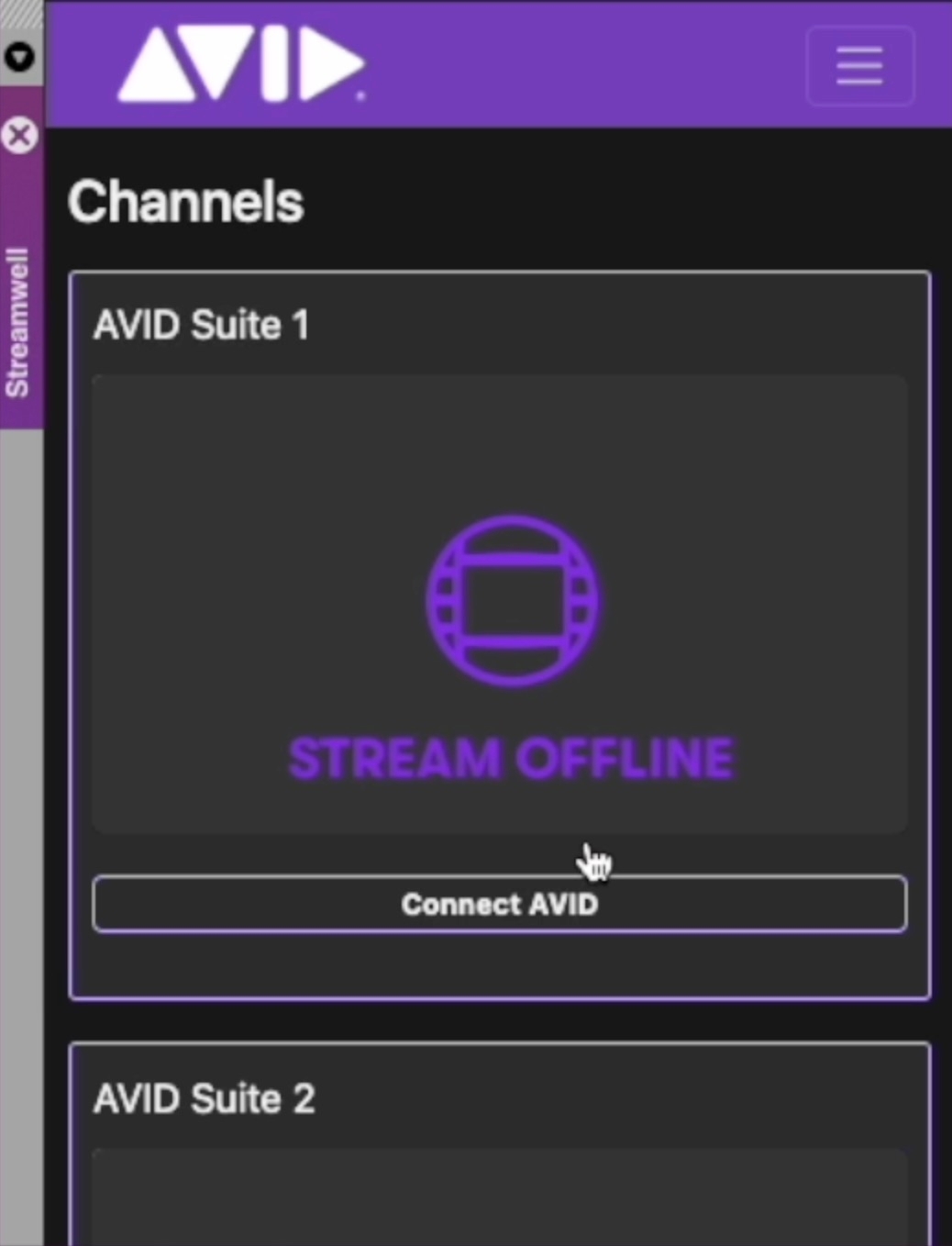
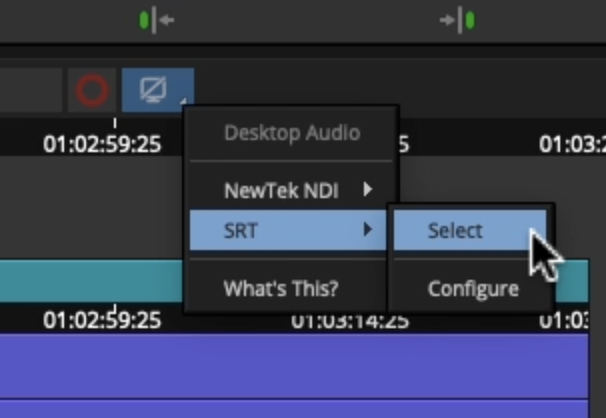
Click to connect to the channel of your choosing, making sure SRT output has been installed/activated in Media Composer.
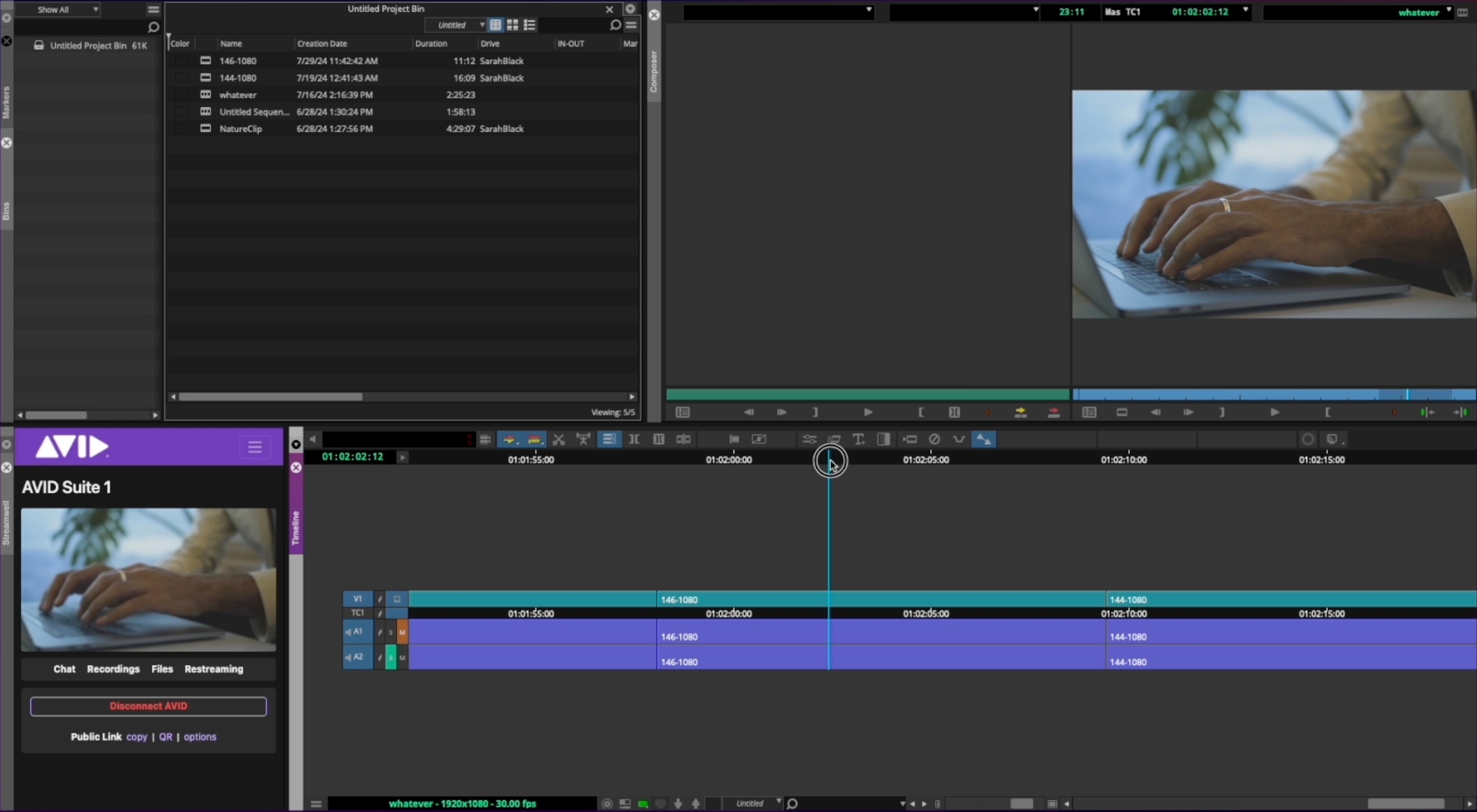
And you're live! Viewers on your channel will see a near-realtime playout from whichever viewer is active in Media Composer.
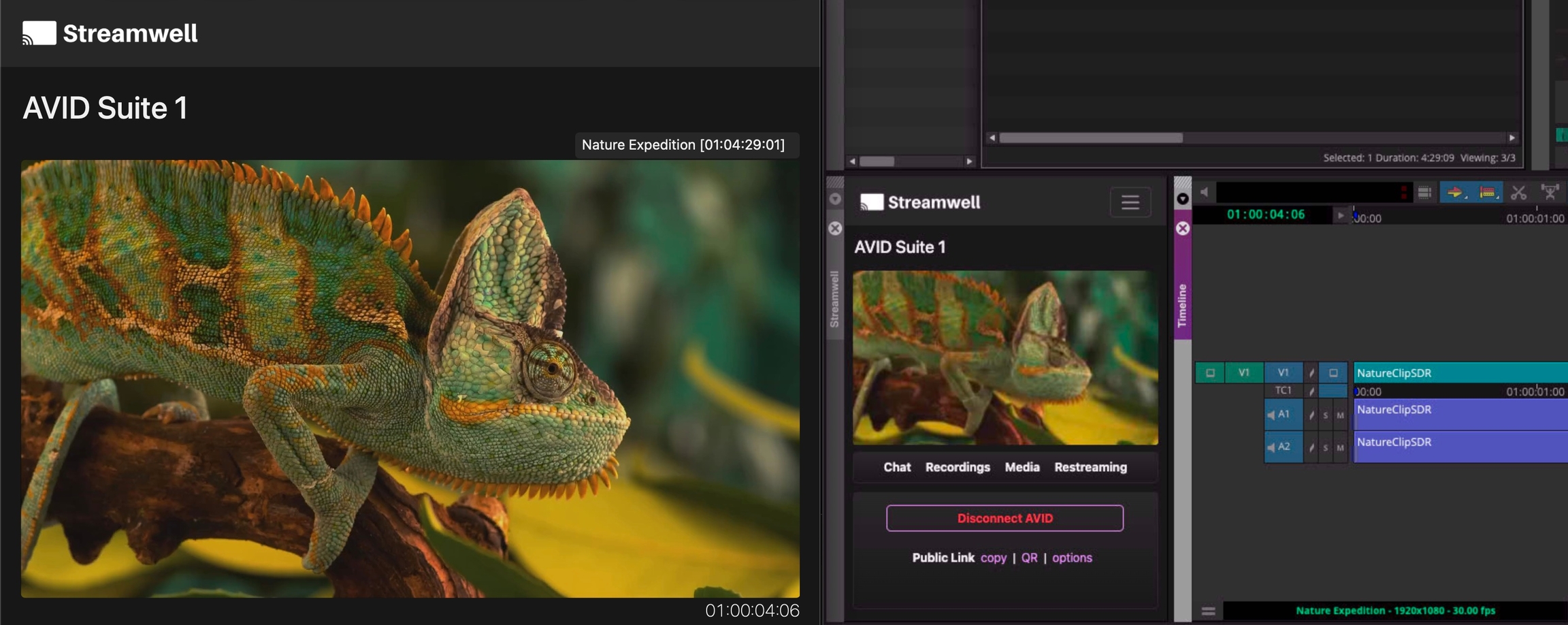
Remote viewers can see a live readout of your current timecode - this gives them a reliable reference point they can use in their own notes or comments.
Logged in remote viewers can make comments using the chat panel, and they will automatically drop onto the current viewer or a track of your choosing! If a user creates an annotation, it will show up in Media Composer as an SVG annotation in version 2025.12 or later.
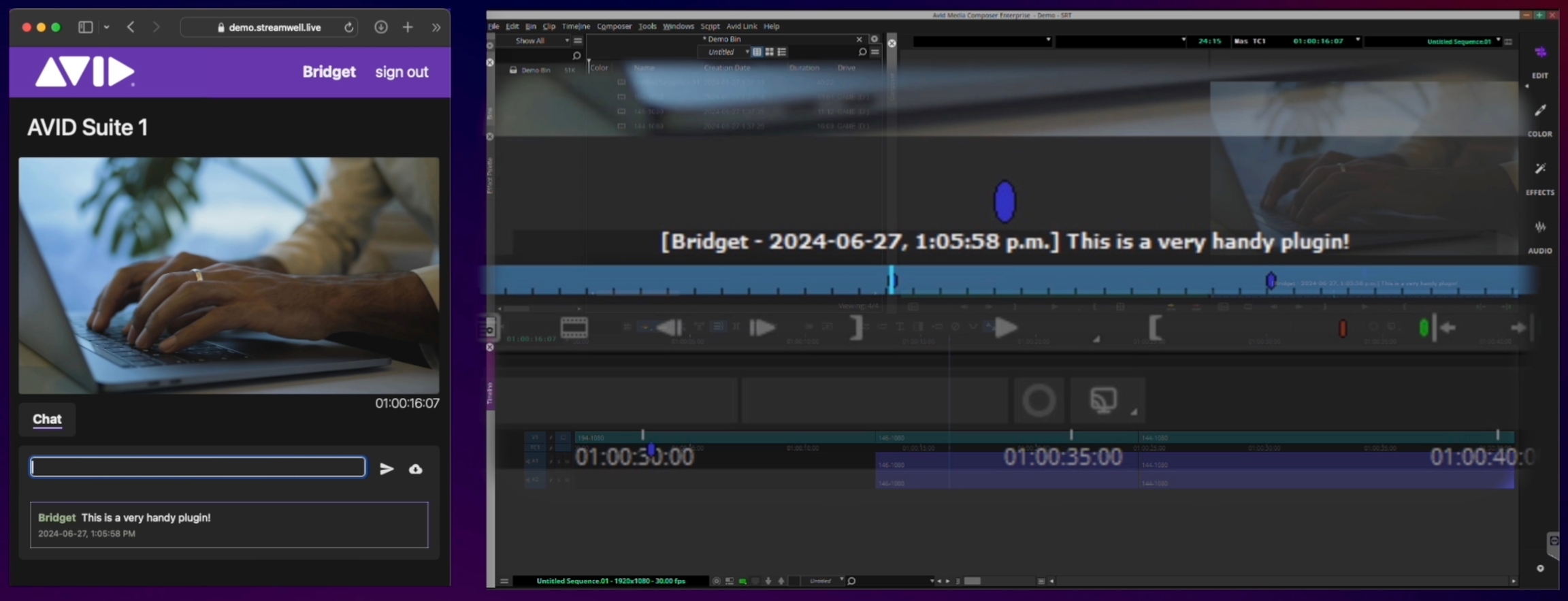
Additionally, Logged in remote viewers can be given the option to remote control your instance of Media Composer, to drive their own playback session. When allowed, the controls will appear beneath the player (otherwise they will just see the timecode). Preliminary controls include start/stop, jump 15s forward or back, go to beginning, and go to a particular timecode stamp. In MC 2025.12 you can also nudge frame by frame. It's almost like being there!

The menu at the top of the Streamwell interface allows you to customize how your AVID extension functions:
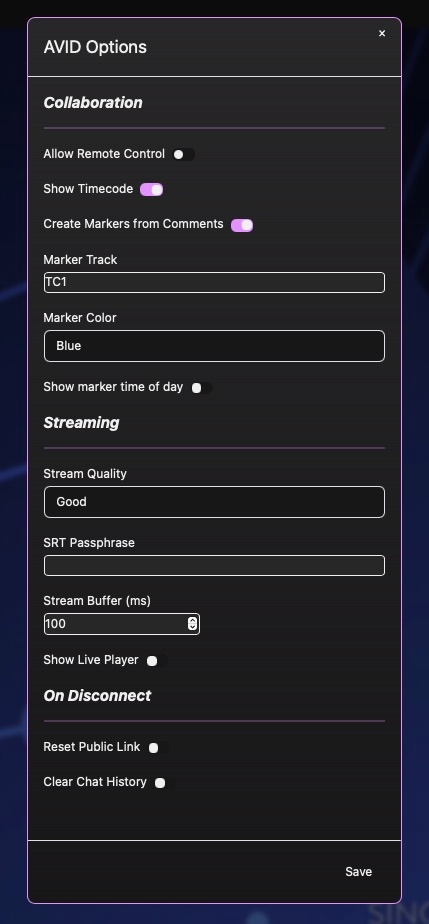
Allow Remote Control - lets logged in users on this channel control playback in Media Composer - deselect this to revoke remote control capability on the fly.
Show Timecode - toggles display of your current timecode to remote viewers. Remote control requires timecode, so turning this off will also turn off remote control.
Create Markers from Comments - controls whether or not chat messages are imported as markers - deselect this to keep the chat in Streamwell only.
Marker Track - specify any existing track (TC1, V2, A5, etc...) and incoming markers will go there. If you name a track that does not exist, the markers will go nowhere.
Marker Color - express yourself! 🌈
Show marker time of day - adds a date-time stamp to the marker comment (helpful if many people are commenting on the same point in the timeline)
Show annotations on markers (MC 2025.12 and up) - Display SVG annotations along with the markers in Media Composer, when a user makes annotations in Streamwell.
Stream Quality - by default, this should be set to Good to maximize compatibility with remote viewers. However you can raise it to Better for ultra-high quality remote sessions, or Best when streaming within your local network, for example to a playout device in a client suite.
SRT Passphrase - If SRT Encryption is enabled on your server, enter the passphrase here. If you use a passphrase but SRT encryption is not enabled, the stream may fail to connect.
Stream Buffer - how much of a delay do we introduce to account for the stream reaching the server? In most cases the default of 100ms is reasonable. If you are on a locally hosted server, this value could be set as low as 10 or 20ms. If you are geographically far away from your server (e.g. coast to coast) you could increase it to 500 or 1000ms to ensure smooth streaming.
Show Live Player - Unselect this option to show a simple thumbnail preview instead of the live player in the Streamwell extension. Good to improve performance systems with limited bandwidth or CPU, where the live player might struggle beside your other MC workflows.
On Disconnect - When disconnecting AVID Media Composer with these options enabled, the public web link can be automatically reset and the chat can be automatically cleared. These options can also be set at the administrator level to force a certain behaviour for all users.
Last updated