# Live Playback
### Supported Playback Methods
Streamwell supports these methods of live playback:
* **WebRTC (Browser-Based) -** This is our primary ultra low-latency method of playback that works via a regular web browser (Chrome, Edge, Safari, Firefox). H264 and H265 including **10-bit 4:2:2 colour** is supported in Chrome and Safari.
* **LL-HLS -** Provides a DVR Mode and allows rewinding of the live stream with latency of around 2 seconds. Optionally supports direct playback of .m3u8 playlists from the server for use as a CDN. Also supports **HDR video** and **multi-channel audio.**
* **SRT Listener** - Use SRT for the highest-quality playback through hardware decoder devices, software like VLC or any other SRT Caller. Also supports **HDR video** and **multi-channel audio.**
* **Embedded Playback** - Optionally supports use of an embed code to place the Streamwell player on an external website.
### The Player
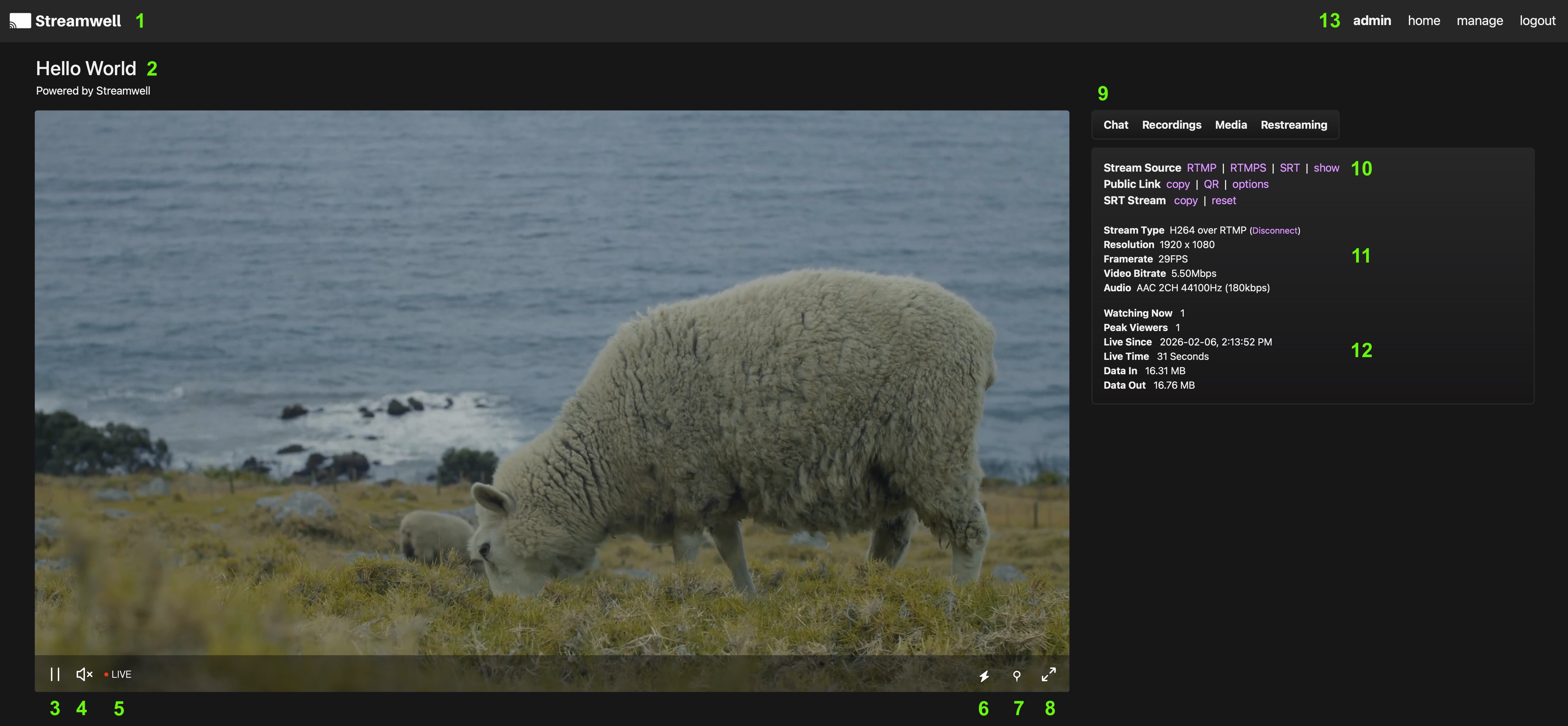
Let's have a look at the Streamwell player (We use [OvenPlayer](https://ovenplayer.com/)), through the eyes of a logged in admin user:
1. **Brand Logo**. Set a [Custom Theme](https://docs.streamwell.net/managing-streamwell/server-management#custom-themes) on the channel to change this along with the header, accent, text, background, foreground panel colours and other custom styles.
2. **Name and Notes**. Admins can click to edit these on the fly, and this permission can also be extended to logged-in privileged users ("Creators can edit name/notes" option).
3. **Play/Pause** (Or use spacebar)
4. **Mute** and volume control (Use M key to toggle mute)
5. **Live indicator** (click to catch up to live when in DVR mode)
6. **DVR Mode** - click to toggle between WebRTC and LL-HLS playback which allows rewinding of the stream (optional, and cached stream length is configurable). This is also a good means of playback on very distant or unstable connections where ultra low-latency is not possible.
7. **Annotation** - create a [Live Annotation](https://docs.streamwell.net/chat-and-annotations#live-annotations) in the Chat
8. **Fullscreen** (Use F key to toggle, or use T key for a focused theater-style player)
9. **Feature Panels** like Chat, Recordings, Media, Restreaming, changes depending on which features are active.
10. **Stream Source** - these are the ingress URLs you use to stream video into Streamwell from your software or encoder. Click to copy or hit 'show' to see the pieces broken out like "server", "key". The 'show' button will also reveal an option to reset the main incoming stream key for the channel, preventing previous users from accidentally streaming back to the same channel.\
\
**Public Link** - Click to copy or display a QR code. Use 'options' to set a public password and view all other public egress links. Full info under [Sharing & Public Access](https://docs.streamwell.net/using-streamwell/sharing-and-public-access)\
\
**HLS Stream** - If HLS playback option is enabled, displays a separate HLS link for direct playback, which is reset whenever the main stream key is reset.\
\
**SRT Stream** - If SRT playback option is enabled, displays a separate SRT listener link for direct playback, which can be reset independent of the other public link.
11. **Stream Info** - Displays information about the incoming stream including protocol, resolution, framerate, bitrate, audio channels etc.
12. **Stream Stats** - Displays information about how long the stream has been active, how many people are watching, and how much data is moving in and out.
Note: Items 10-12 will be hidden from the stream page if "Stream Statistics" is deactivated in the Admin Preferences. They are always accessible from the home page.