# Recording
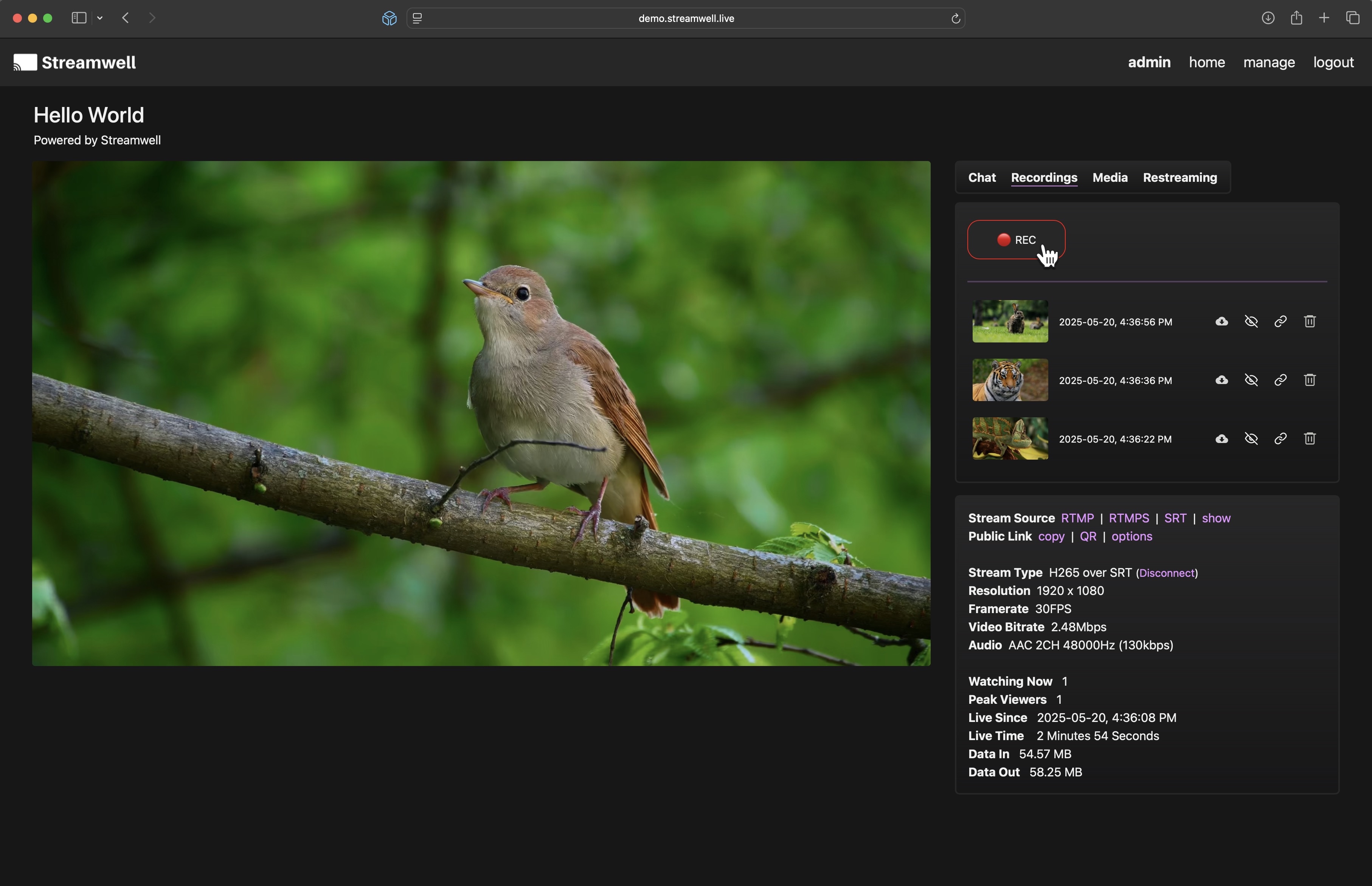
With stream recordings enabled in Administration -> Server -> Settings, you can start a server-side recording of your H.264 or H.265 streams by clicking the REC button when the stream is live:
Just click to record!
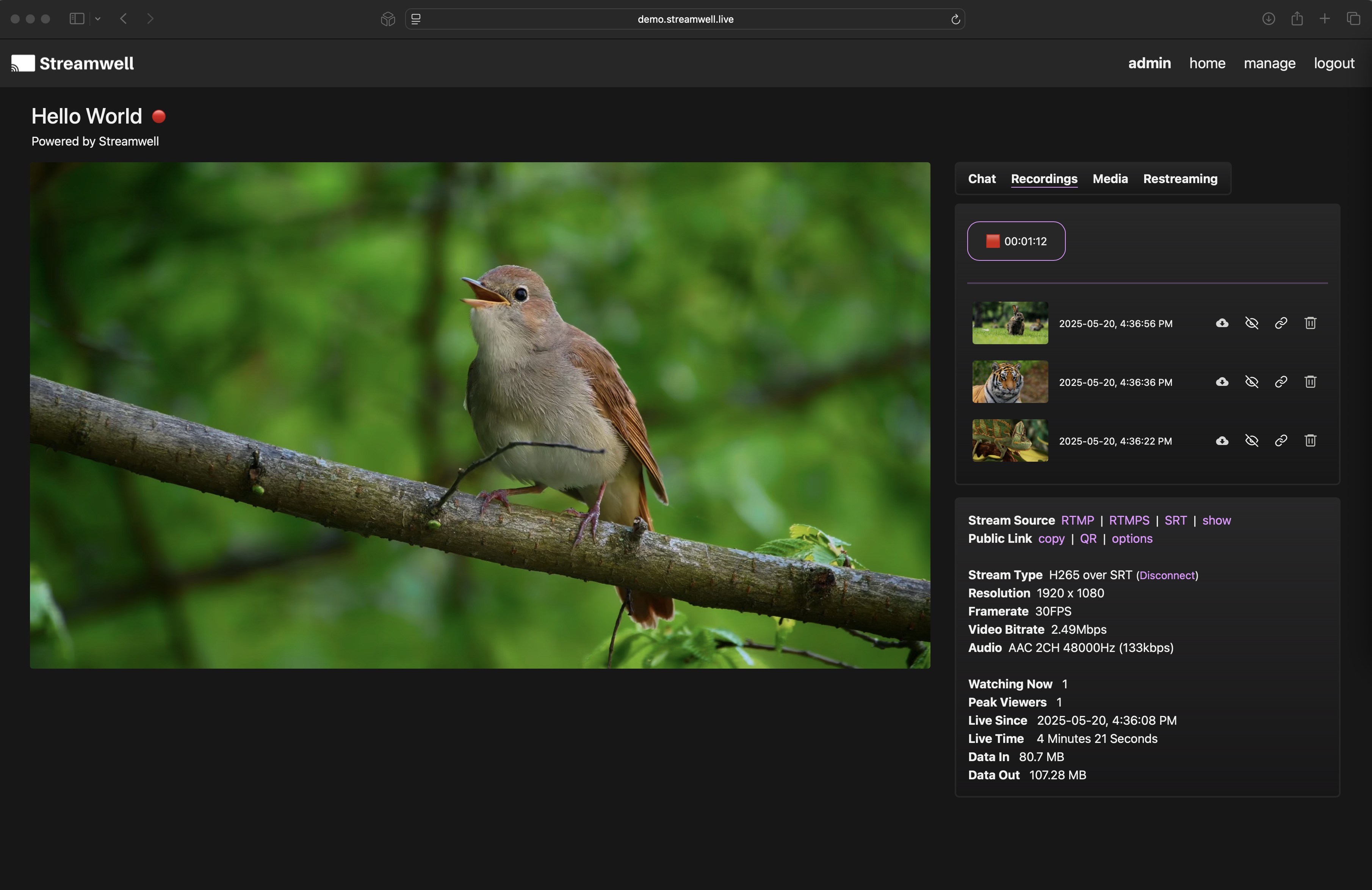
The recording indicator shows here as well as the home screen.
You are free to leave the page while the recording is active. When you stop the recording, it will create a thumbnail on the server and appear in the list after a few seconds. You can then playback recordings in the browser as you please, or download them for use elsewhere. The recordings are muxed into MP4 but not re-encoded, so the exact video data received by the server is what you will see in your recording. A minimum of 8GB disk space is required to begin a recording. If you don't see a REC button, check that you have enabled recordings in the Admin section, and of course that your stream is live!

Note: While there is no maximum recording length enforced, longer recordings will have potentially huge file sizes and can use a very high amount of bandwidth for playback. **Google Chrome** works best for playing back and seeking through very long recordings.
## Sharing
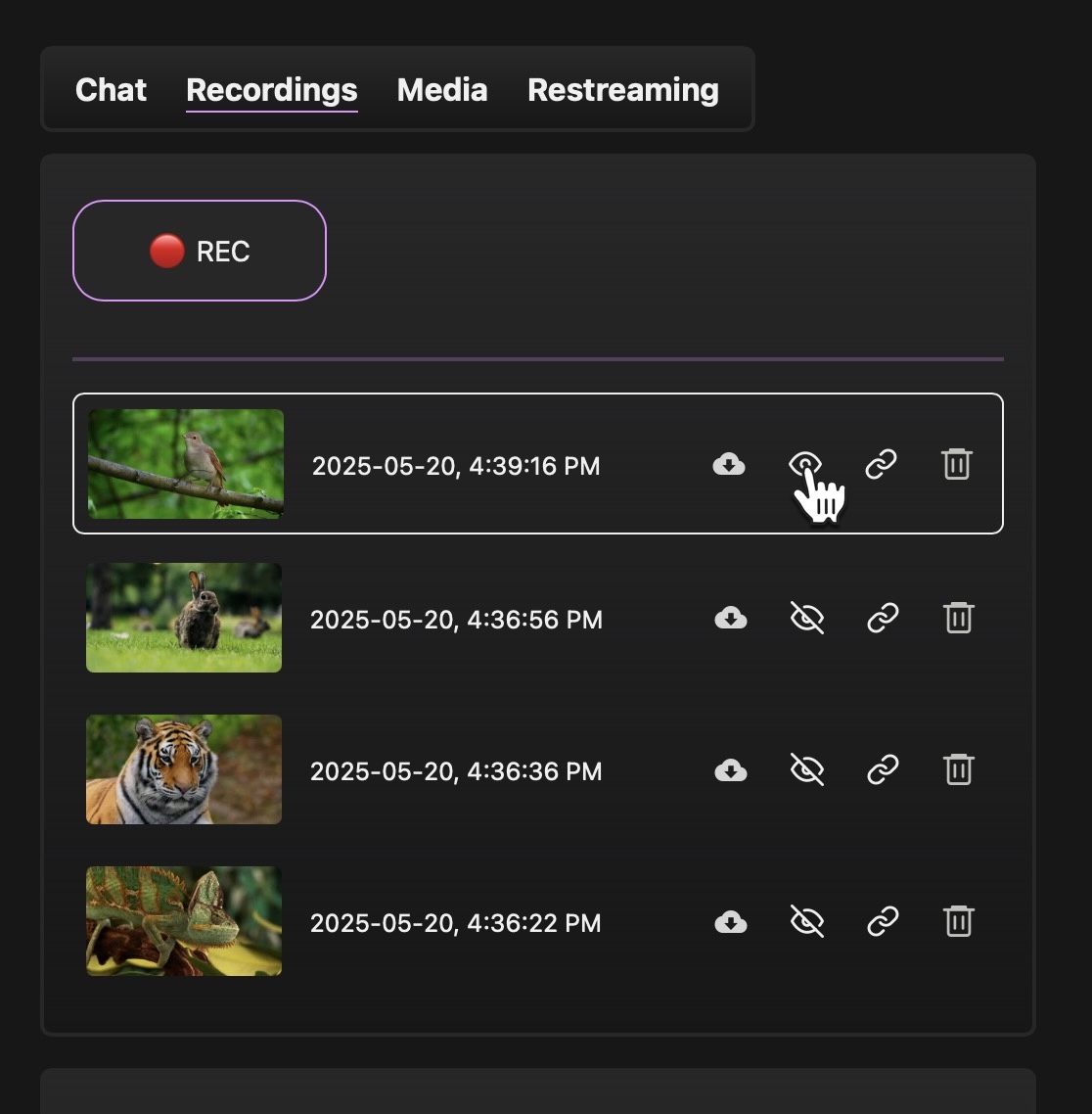
Click the eyeball button next to a recording to make it available to clients who are logged into this channel - you can also download or delete the recording. The public link 🔗 for a recording acts as a direct download link when the recording is shared.
## Automatic Recording
Automatic recording (which is set in the [Channel](https://docs.streamwell.net/streamwell-v1.8.0/using-streamwell/channels) configuration) essentially takes care of pressing the REC button for you the moment the stream starts. Make sure you've got lots of free disk space! You can stop a recording which was started automatically - i.e. it does not also have to stop automatically. It is not recommended to leave automatic recording on for channels with super long live streams (more than 8 hours starts to get dicey for playback in the web browser).